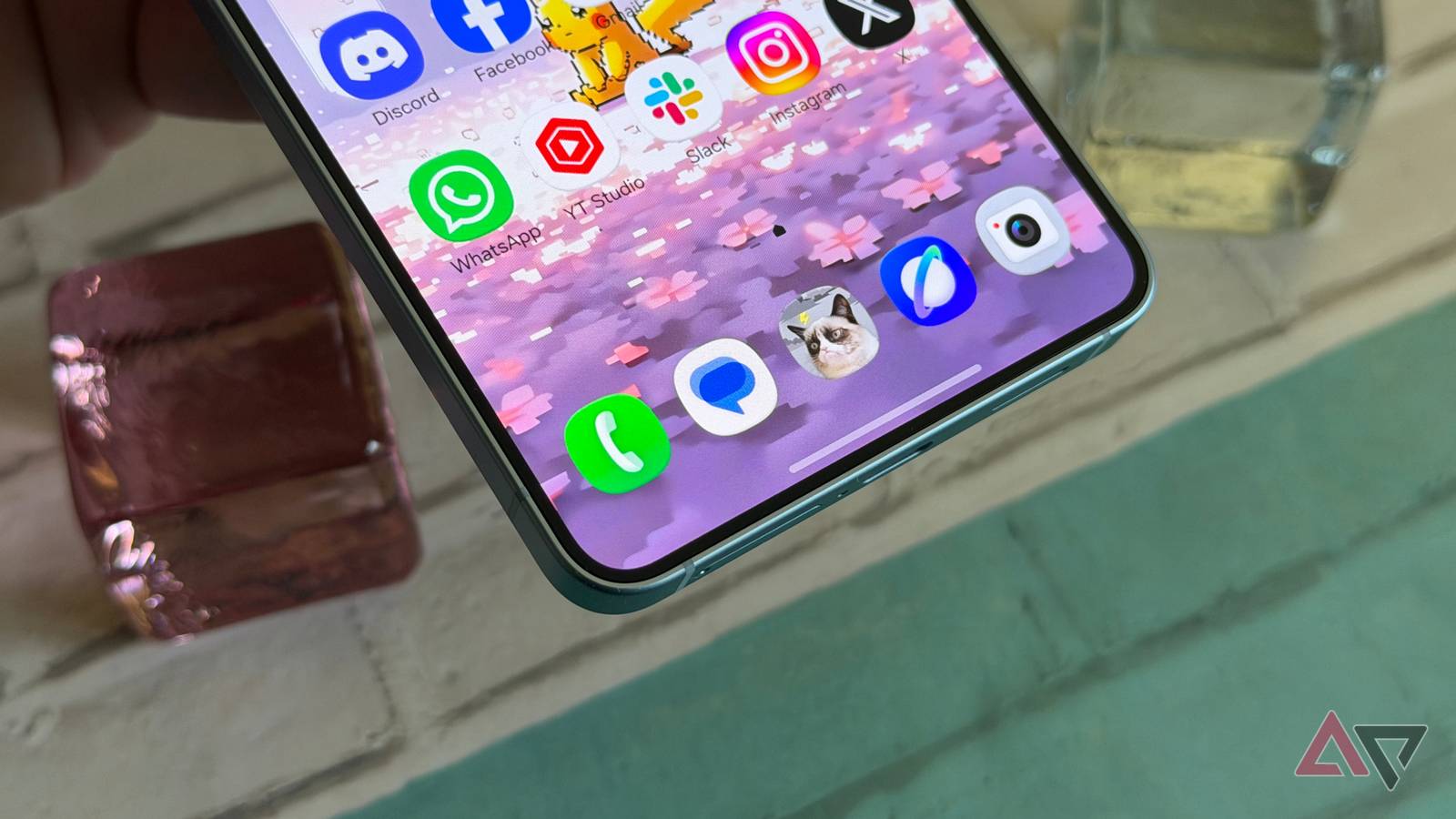
Samsung’s One UI has always been one of my favorite Android skins, but after months of use, my phone started feeling heavier than it should.
Apps took an extra beat to open, the interface felt busy, and there were too many suggestions, background services, and visual extras fighting for attention.
So, I went through One UI’s settings and changed a few options that made a big difference. Now, my Samsung Galaxy phone feels faster, cleaner, and far less bloated.
I’m a Pixel fan, but the latest OneUI update is making me jealous
The Quick Settings redesign is perfect
Put unnecessary apps to deep sleep


The first setting I changed was one I had ignored for far too long: deep sleeping apps.
Samsung gives you a lot of control over background activity in One UI, and I realized I had dozens of apps sitting quietly in the background even though I didn’t need them to do anything until I actually opened them.
After all, not every app deserves permission to refresh, sync, or stay active behind the scenes.
So, I headed to Settings > Device Care > Battery > Background usage limits > Deep sleeping apps and started adding unnecessary apps to the list.
I added shopping apps, travel apps, old games, streaming apps I rarely opened, and random utilities.
Now, my phone isn’t constantly waking up for apps I barely use. It’s one of the easiest ways to make One UI feel lighter without uninstalling everything.

Quiz
Samsung One UI & Ecosystem
Trivia Challenge
Think you know Samsung’s software universe inside out — put your One UI knowledge to the ultimate test!
One UIQuick ShareDeXHistoryCross-Device
What was the name of Samsung’s custom Android skin BEFORE it was rebranded to One UI in 2018?
Correct! Samsung Experience was the direct predecessor to One UI, launched around 2017. Before that, Samsung’s UI was known as TouchWiz, which had been around since 2009 and became notorious for its heavy feature set and performance impact.
Not quite. The answer is Samsung Experience. Samsung used that name starting around 2017 before unveiling One UI at Samsung Developer Conference 2018. The skin before Samsung Experience was the long-running TouchWiz, which many users loved to hate.
One UI was specifically designed around a key ergonomic concept — what was it?
Exactly right! Samsung designed One UI around the idea that as phone screens got larger, reaching the top of the display became awkward. By pushing interactive content to the bottom half of the screen, One UI made big-screen phones far more comfortable to use with one hand.
Not quite. The core design philosophy of One UI was about one-handed usability on large screens. Samsung split the display into a viewing zone at the top and an interaction zone at the bottom, so your thumb never has to stretch uncomfortably far.
Quick Share is Samsung’s proximity-based file sharing feature. With which major tech company did Samsung partner to merge and unify Quick Share in 2023?
Correct! Samsung and Google announced a partnership in 2023 to merge Quick Share with Google’s Nearby Share, ultimately rebranding the unified feature as ‘Quick Share’ across both Samsung and broader Android devices. This was a major step toward ecosystem unification on Android.
Not quite — it was Google. Samsung and Google teamed up to merge Quick Share and Nearby Share into a single unified solution, simply called Quick Share. The move made cross-device file transfers between Samsung phones and non-Samsung Android devices much smoother.
Quick Share was originally exclusive to Samsung Galaxy devices, but following its unification with Google’s sharing solution, it became available on which broader platform?
That’s right! After the merger with Nearby Share, the unified Quick Share app became available on Android 12 and later for all Android device manufacturers, not just Samsung. Samsung also released a Quick Share app for Windows, extending its reach even further.
Not quite. The unified Quick Share became available on Android 12 and higher across all Android manufacturers. This was a big deal — it meant users no longer had to rely on completely separate apps depending on which Android brand they owned.
Samsung DeX, which turns a Galaxy phone into a desktop-like experience, was first introduced with which Samsung Galaxy device?
Spot on! Samsung DeX debuted alongside the Galaxy S8 in 2017, initially requiring a dedicated DeX Station dock to connect to a monitor, keyboard, and mouse. It was a bold move to position a smartphone as a legitimate desktop computing device.
Not quite — Samsung DeX launched with the Galaxy S8 in 2017. It required a special docking station at first, but later Galaxy devices allowed DeX to work wirelessly or via a simple USB-C to HDMI cable, making it far more accessible.
Samsung’s ‘Link to Windows’ feature allows Galaxy phones to connect seamlessly with Windows PCs. Which company developed and provides the underlying technology for this integration?
Correct! Microsoft powers the Link to Windows feature, which is built on the same technology as Microsoft’s ‘Phone Link’ app. Samsung has had an exclusive partnership with Microsoft that for a time gave Galaxy users features like running Android apps directly on Windows before other Android phones.
The correct answer is Microsoft. The Link to Windows integration is a partnership between Samsung and Microsoft, built on the Phone Link platform. Samsung Galaxy users even had early exclusive access to features like mirroring Android apps on Windows desktops before that rolled out more broadly.
One UI 6.1 introduced a suite of AI-powered features under what Samsung branding umbrella, announced at Galaxy Unpacked in early 2024?
That’s right — Galaxy AI! Samsung introduced this branding with the Galaxy S24 series to group together on-device and cloud-powered AI features like Live Translate, Circle to Search, Chat Assist, and Generative Edit. It marked Samsung’s biggest push into AI-enhanced mobile experiences.
Not quite. Samsung branded its AI feature collection as ‘Galaxy AI,’ introduced with the Galaxy S24 lineup and One UI 6.1. These features included things like Circle to Search (co-developed with Google), Live Translate during calls, and AI-powered photo editing tools.
Samsung’s Bixby voice assistant was first introduced to the public in which year and alongside which device?
Correct! Bixby made its debut with the Samsung Galaxy S8 in 2017, and Samsung even included a dedicated Bixby button on the device’s side — a decision that proved controversial as many users found the button unnecessary and wished it could be remapped. The button was eventually dropped in later generations.
Not quite — Bixby launched alongside the Galaxy S8 in 2017. Its rollout was notably rocky; the English-language version of Bixby Voice was delayed by several months after launch. Samsung also famously added a dedicated Bixby hardware button to the S8, which it later abandoned on newer Galaxy phones.
Your Score
/ 8
Thanks for playing!
Clean up RAM and adjust RAM plus


When I notice apps taking longer to open or the recent apps screen feeling crowded, I go to Settings > Device care > Memory and clean up RAM from there.
It closes unnecessary background processes and gives the phone a quick refresh without forcing me to restart it.
I also changed the RAM Plus setting. By default, many Galaxy phones keep it at a lower value, such as 2GB, but I moved it to 6GB.
RAM Plus uses part of the phone’s internal storage as virtual memory, so it is not the same as having more actual RAM.
Still, it helps when I keep several apps open, switch between social apps, the browser, camera, notes, or return to an app without wanting to reload it from scratch.
This made multitasking feel a little more stable for me. I wouldn’t say RAM plus single-handedly made my Galaxy faster, but combined with deep sleeping unused apps and cleaning up memory occasionally, it helped One UI feel less congested.
Disable unnecessary recommendations and gestures


Another cleanup that made One UI feel less bloated was disabling unnecessary recommendations from Samsung apps.
Individually, things like Galaxy Store suggestions, Samsung News cards, and wallet prompts seemed harmless, but together they made the phone feel cluttered.
I turned off non-essential notifications, and then I went through other apps and switched off recommendations, promotions, and tips.
Then I started disabling the little One UI extras I never used.
I don’t need Samsung News opening from the home screen with a single swipe, so I turned off that left feed page.
I also disabled the swipe-up gesture for Samsung Wallet because I kept triggering it accidentally when I only wanted to unlock the phone or move around the interface.
I did the same with Edge panels.
None of these changes is dramatic on its own, but together they make One UI feel more intentional.
Enable auto optimization


I went to Settings > Device care > Auto optimization and turned on the option to restart the phone when needed.
It’s a small setting, but it helps One UI refresh itself automatically when the phone is idle and not being used.
Instead of waiting until my Galaxy phone starts acting sluggish, this gives it a chance to clear things up in the background without me thinking about it.
I don’t expect Auto optimization to fix every performance issue, but it works well as a maintenance tool.
For me, this setting is less about instant speed and more about long-term smoothness.
6 useful built-in Samsung One UI apps you’re probably not using — but you should be
As a Samsung user, you owe it to yourself
Disable One UI wallpaper services


Another One UI setting I disabled right away was the wallpaper service on the lock screen.
On some Galaxy phones, Samsung shows services like Glance that add changing wallpapers, news cards, recommendations, and other content directly to the lock screen.
So, I went to Settings > Wallpaper and style and checked the lock screen wallpaper services from there.
If a service like Glance was enabled, I turned it off and switched back to my own wallpaper collection.
This tweak didn’t make my Galaxy faster in the traditional sense, but it made the phone feel less bloated every time I unlocked it.
Tweaks that saved my Galaxy
Samsung’s One UI is packed with useful features, but that is also exactly why it can start to feel heavy over time.
I didn’t need to factory reset my phone, install a new launcher, or blame the hardware to fix it.
A few settings changes were enough to cut down the noise and make my Galaxy feel smoother and more focused again.
The best part is that none of these tweaks ruined the Samsung experience for me. They simply removed the parts I wasn’t using anyway.