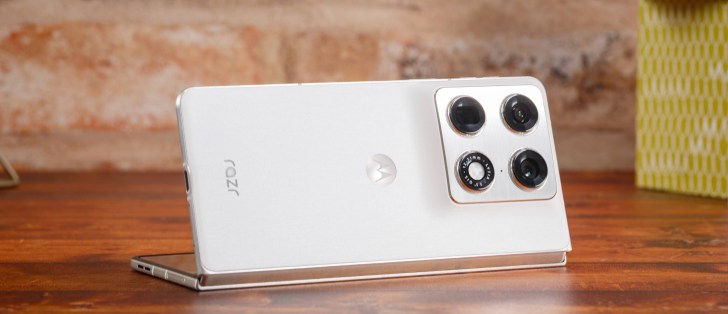
Hello UI on top of Android 16
The Motorola Razr Fold boots Android 16 with the lightweight Hello UI by Moto. And if you have used any recent Motorola, you will feel right at home with the Fold. You can check out our Hello UI/Moto AI video for a better understanding. We made that video last year for the Moto Edge 60.
Motorola promises seven major Android upgrades for the Razr Fold, which means it will be supported well past the point where its hardware is obsolete.
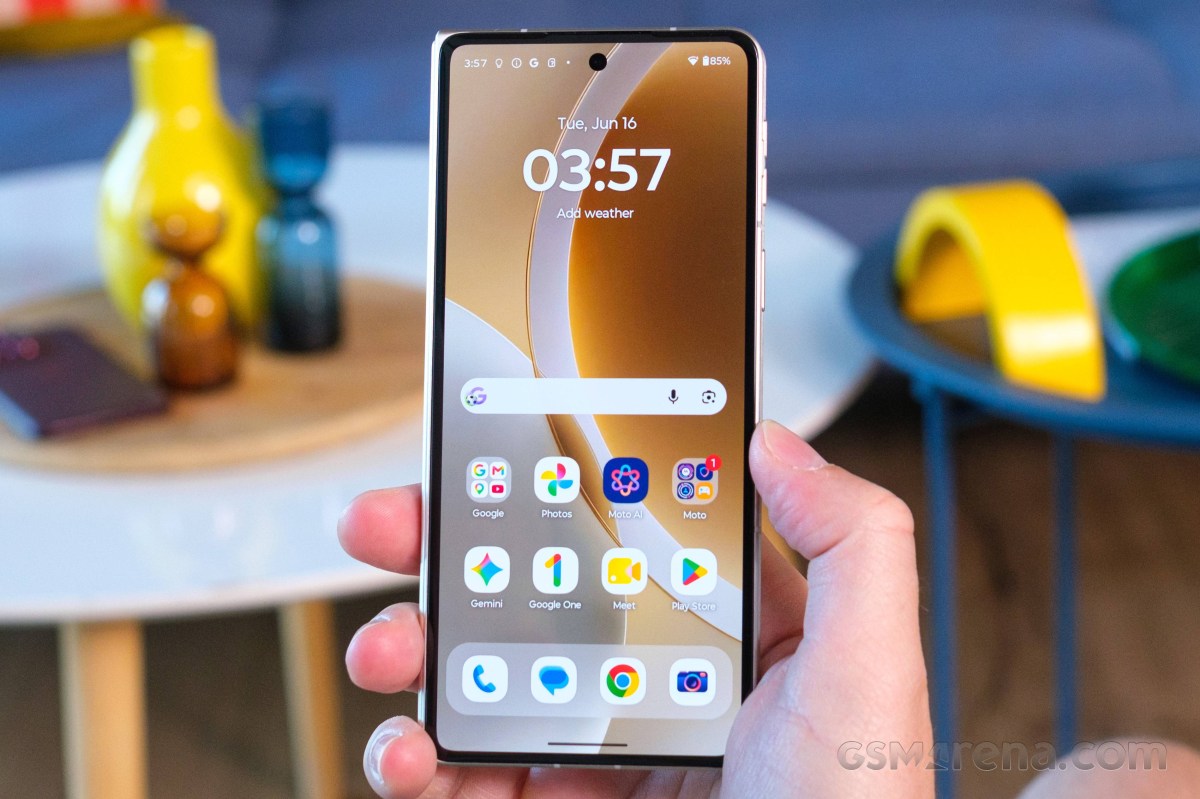
Motorola continues to offer one of the cleaner Android implementations around, combining a largely stock-looking interface with a growing number of proprietary features and enhancements. Thankfully, these additions are generally useful and tastefully implemented, complementing rather than complicating the overall experience.
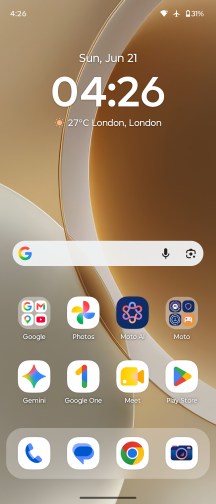
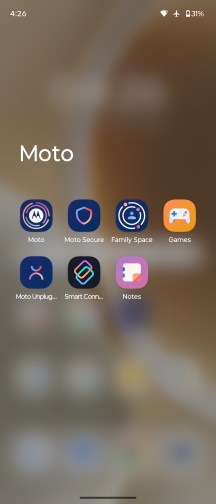
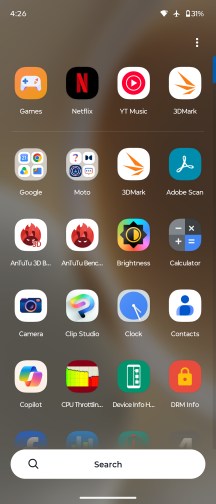
Hello UI
The distinctive font helps Motorola’s phones stand out from the crowd despite the otherwise familiar Android interface, while the additional functionality is neatly consolidated inside the Moto app. Motorola refreshed the hub not too long ago, improving its organization and navigation. Categories with a large number of options, such as Gestures, are now laid out more efficiently, making it possible to access everything from a single screen.
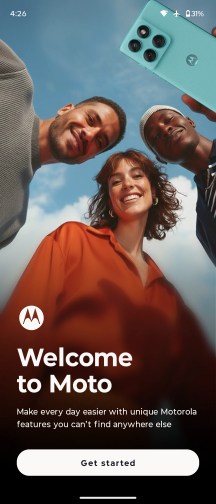
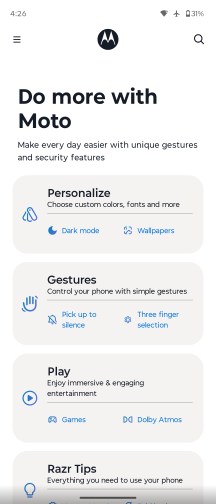
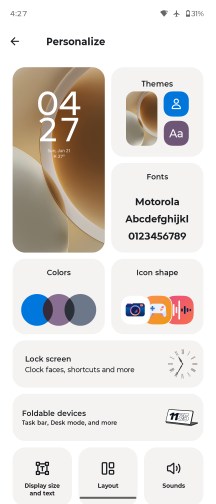
Moto app
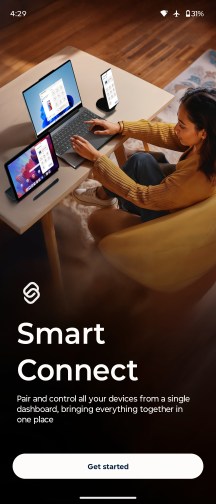
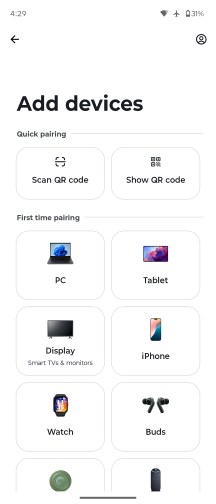
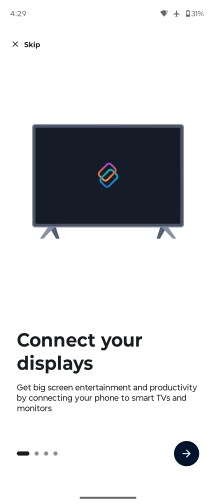
Smart Connect (formerly known as Ready For) is Motorola’s umbrella branding for its extended connectivity suite. It bundles all features related to linking the phone to a PC, tablet or external display, whether via cable or wirelessly. Screen streaming, a desktop-style interface, phone-to-PC integration, Smart Sharing, Smart Clipboard, cross-device control and more are all neatly consolidated under a single menu. With its DP over Type-C support, the Motorola Razr Fold is very versatile when it comes to video output.
The Smart Connect app is where you would also pair your Moto buds, watch, VR, and tags.
Smart Connect
Motorola approaches AI a bit differently compared to most of its rivals. Instead of locking you into a single assistant, it lets you choose between multiple AI models on the same device. Alongside Google’s Gemini, you also get Motorola’s in-house solution, dubbed Moto AI, which is designed to be readily available from virtually anywhere in the interface.
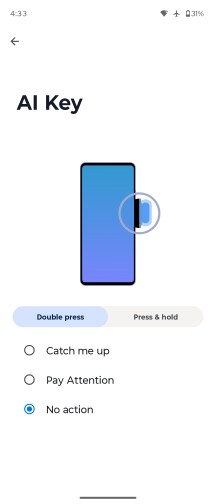
AI key
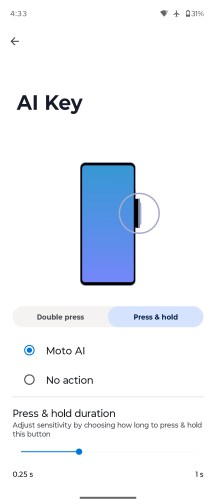
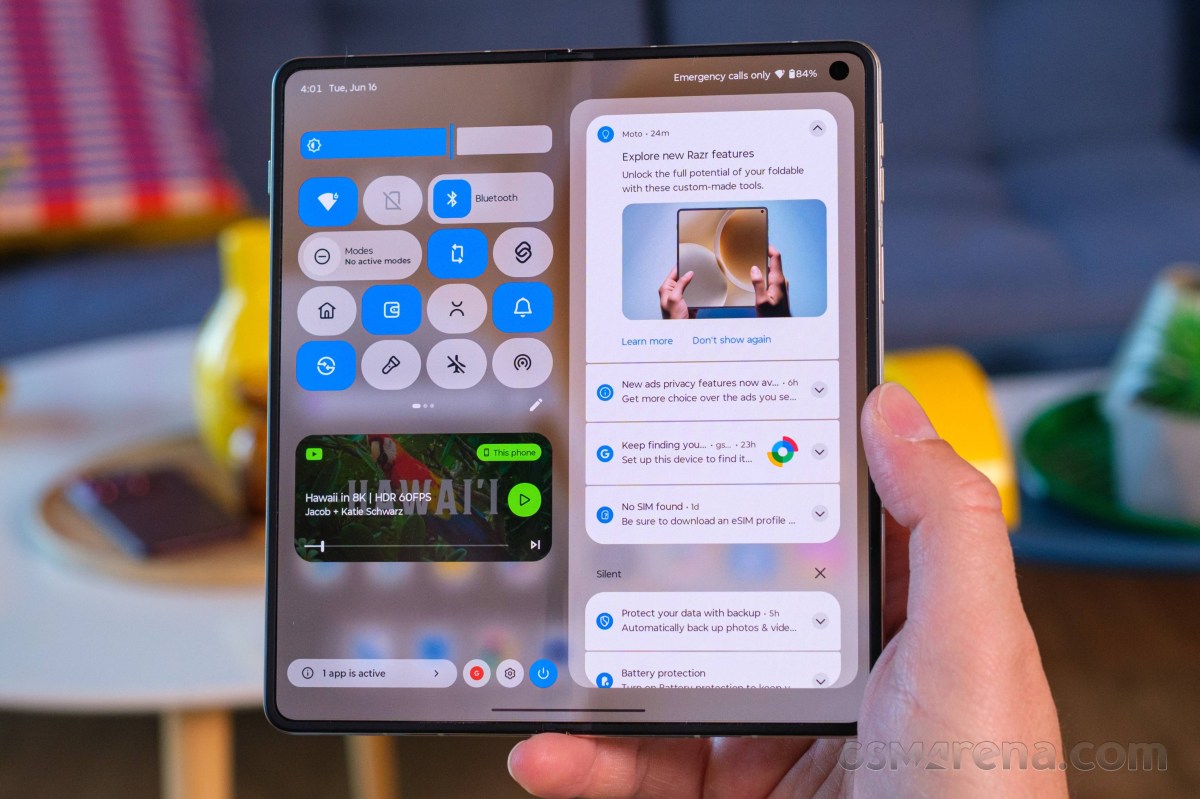
You can bring up the Moto AI chat bar using the dedicated AI key on the side of the phone, a double-tap gesture on the back (one of the configurable Moto actions), or through an optional floating bubble overlay.
As with any modern AI chatbot, you can query Moto AI about just anything on the fly – from general knowledge questions to guidance on enabling features and navigating settings on the phone itself.
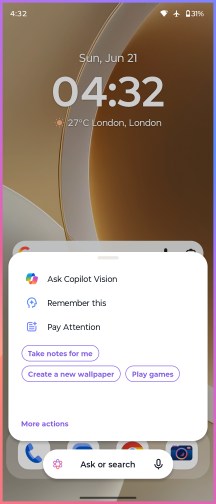
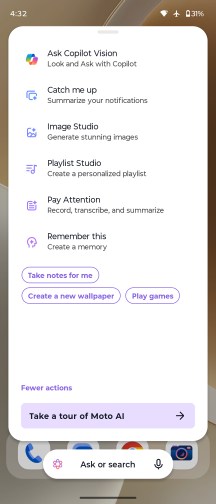
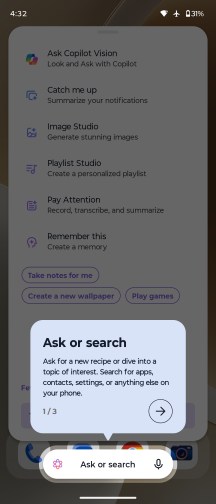
Moto AI
More recently, Moto AI has also gained Copilot Vision integration, which functions similarly to Gemini Live. Beyond simple text conversations, it can analyze what the camera sees and answer questions about your surroundings in real time.
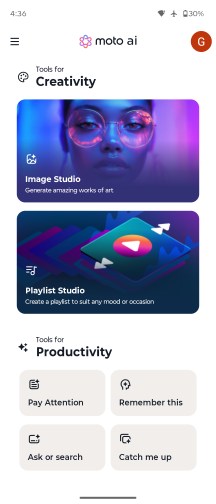
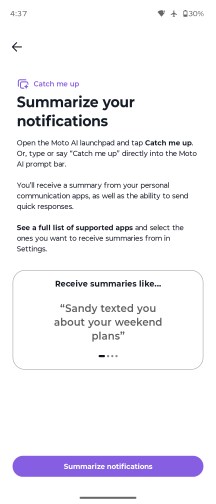
Pressing the dedicated AI key doesn’t just open the chat interface, though – it also brings up a curated list of AI-powered tools. Catch Me Up is Motorola’s take on notification summaries, neatly condensing recent alerts into a single, digestible overview. Pay Attention handles audio recording, transcription and summarization duties.
Google Gemini is available out of the box, too.
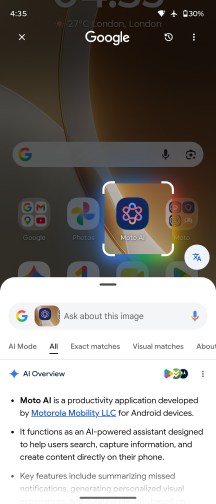
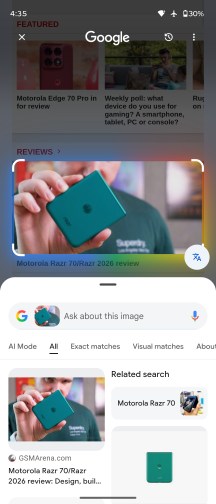
Google Circle to Search
Moto AI can handle a wide range of tasks, including device-specific actions and contextual assistance. It can summarize notifications, record and transcribe conversations, generate summaries of on-screen content, and save information in the form of screenshots, photos, or text notes. It also supports image generation, allowing users to create visuals from simple text prompts.
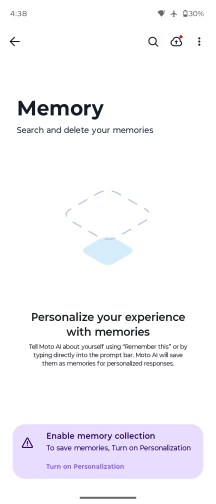
Moto AI
The image generation capabilities are wide-ranging and can be accessed from the Image Studio section inside the Moto AI app. Image Studio was previously its own app, but it appears to have been rolled into Moto AI. The interface and features haven’t really changed, though.

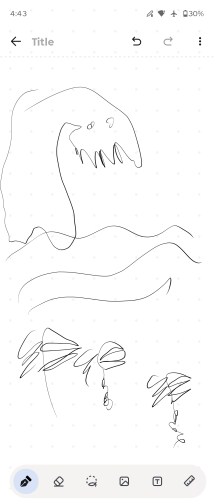
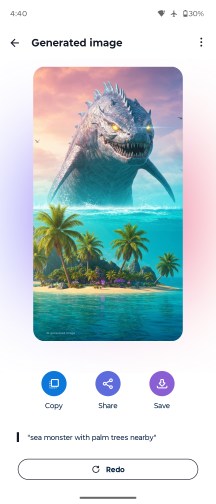
Image Studio
AI tricks aside, the back-tap gesture is a genuinely handy shortcut. Dubbed Quick Launch, it isn’t tied exclusively to Moto AI. You can configure it to open an app of your choice, control music playback, jump back to the home screen, return to the previously used app, and more, making it a flexible addition to the gesture toolbox.
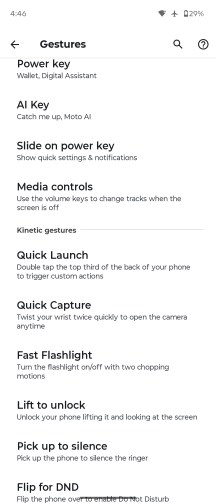
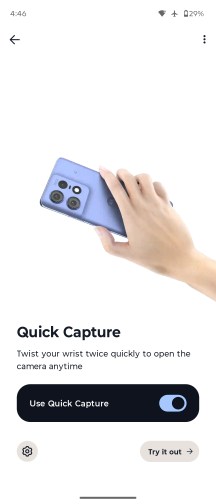
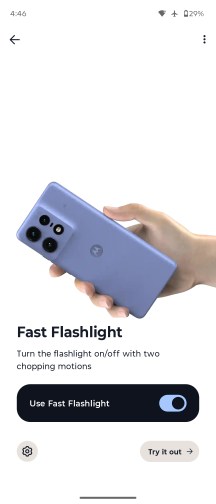
Gestures
As is customary for Motorola, the interface also includes a few signature motion shortcuts. The classic double “karate chop” toggles the flashlight, while a quick wrist twist launches the camera – both remain fast, reliable and intuitive.
On top of Google’s default app suite, Motorola adds a couple of its own apps. There’s a clean-looking yet surprisingly capable Notes app with AI-powered features, as well as Moto Unplug, a tool designed to help you manage notifications, disconnect when needed and maintain a healthier digital balance.
Foldable features
The Motorola Razr Fold has plenty of addition to the standard UI to utilize its form factor. In fact, it offers more than we expected for a first attempt.
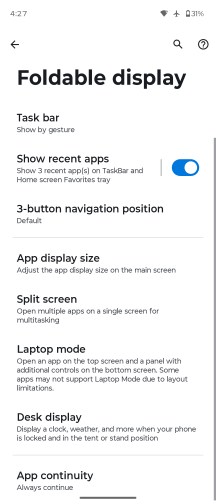
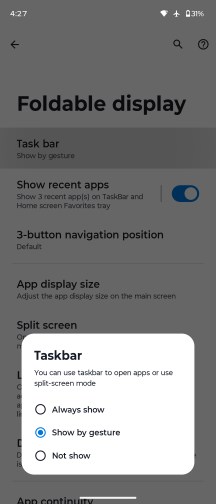
Foldable features
Let’s begin with the obvious – the interface. The Android UI has been optimized for book-style foldables years ago and the logic has not changed much. There is a two-pane layout across the board – homescreen, settings, notifications and quick settings, plenty of compatible apps.
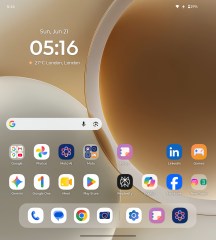
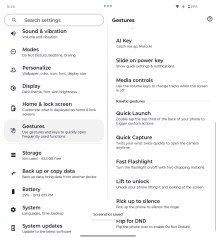
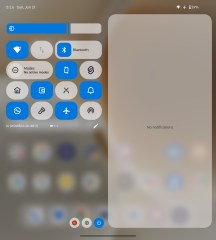
Moto UI
The task bar sits at the bottom with the pinned apps and the most recently opened apps.
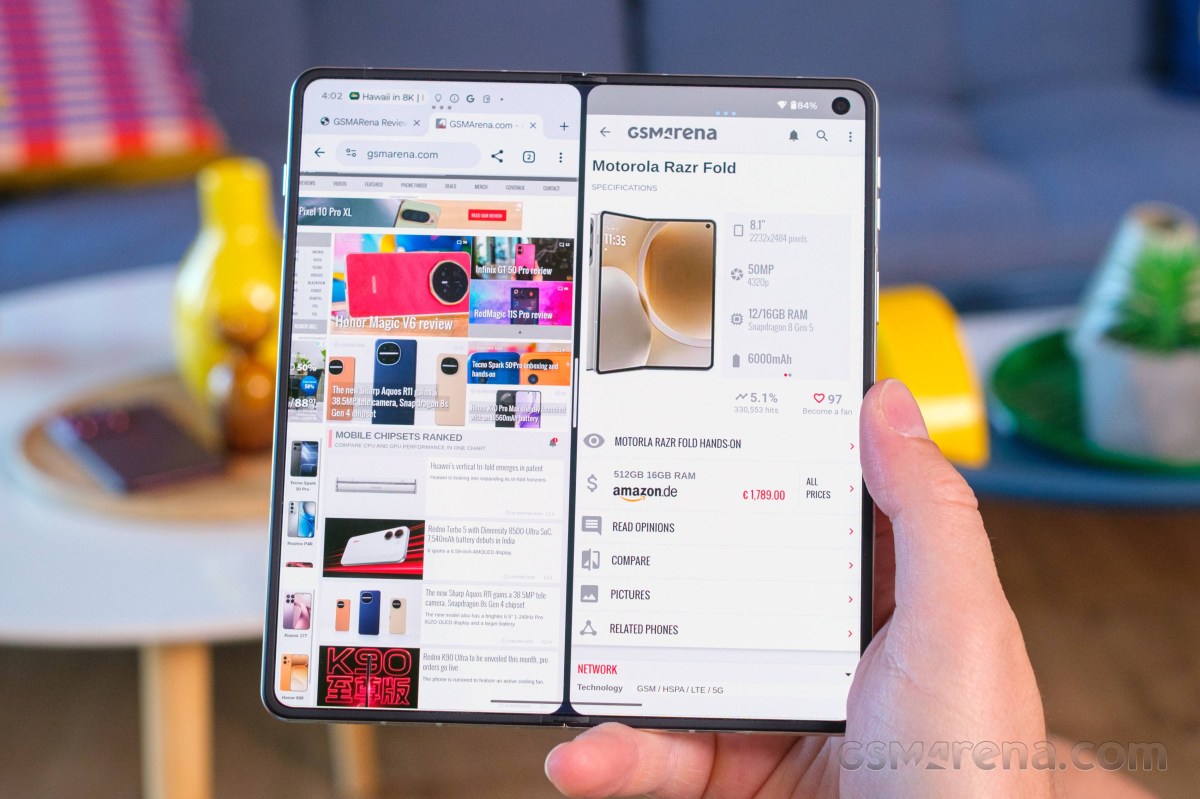
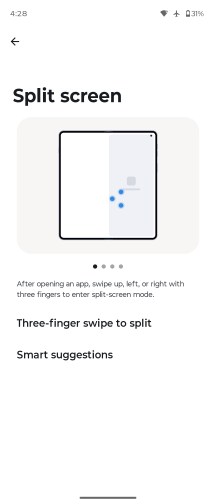
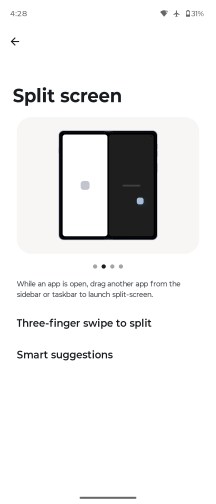
As with most of the foldables, when you are running an app in full screen mode, you can use the task bar (just swipe from the bottom to reveal it) to open apps in split screen or pop-up (called freeform) mode.
Split-screen and freeform are the two options for multi-tasking on both screens – cover and foldable.
You can have two apps on a split screen and one on top of them as a pop-up window.
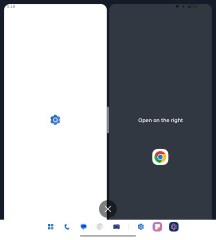
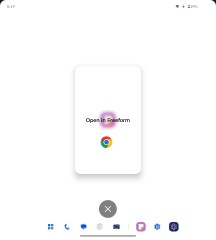
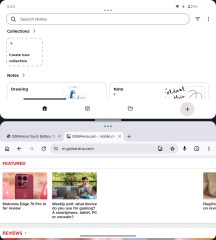
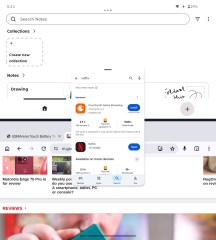
Multi-tasking on the foldable screen
There are two interesting features for the foldable – Laptop mode and Desk Display.
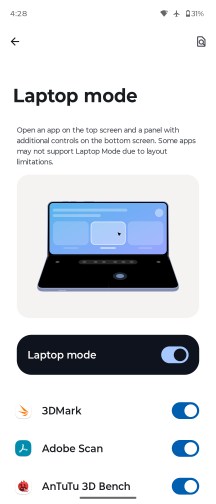
Laptop mode has been available in limited capacity on many previous book-style foldables. You open/close the Fold at a random angle and it looks like a tiny laptop. The bottom of the screen becomes a touchpad with additional controls for cut/copy, sound, brightness, and notifications. Once you start using the touchpad, you will see the mouse at the upper part of the screen.
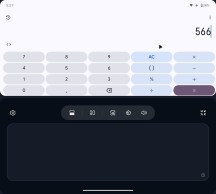
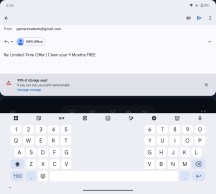
Laptop mode
If the Laptop-enabled app supports keyboard input, like Gmail, you will get a keyboard at the bottom, with options for GIG, emoji, AI creation, and more.
It is a very neat feature, one that we found ourselves using more than we expected.
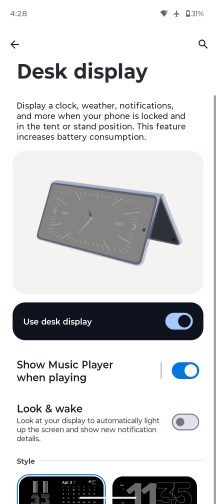
Desk Display is an expansion of the Nightstand. You leave the Fold semi-open and you can enjoy a beautiful clock with calendar. You can choose to show which song is playing on this screen, too.
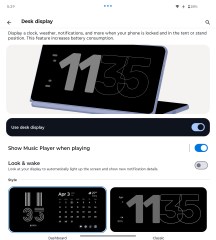
Desk mode
Desk Display supports Look and Wake function – it relies on the selfie camera to recognize when you are looking – and it will only show the Desk Display during that time.
Moto Pen Ultra
The Motorola Pen Ultra and its beautiful charging case with dark fabric comes bundles with the Razr Fold. The pen connects to the Fold via Bluetooth. It has a single button on it, and a spare tip inside the box.
The case, together with the pen, offers 30 hours of use, while a single charge of the pen gives you 3 hours.
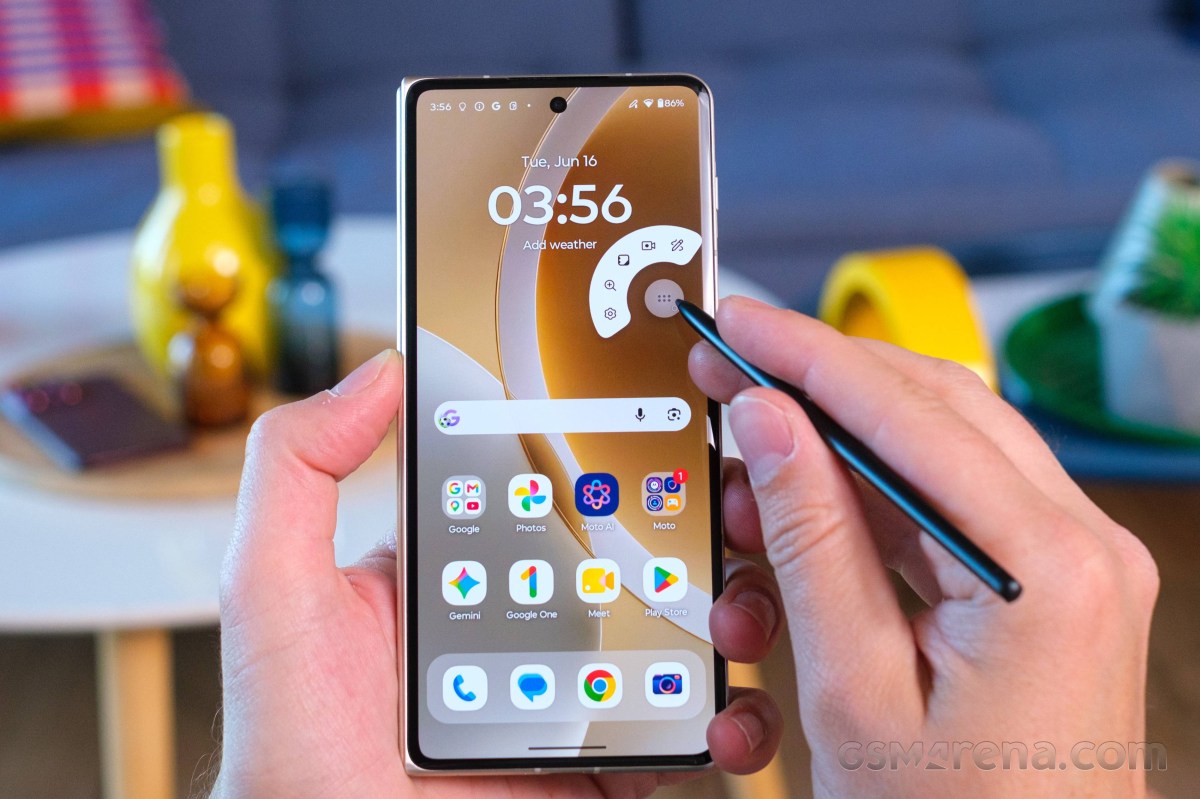
The stylus is active, obviously. And thanks to the active connection to the Moto, the stylus offers a functional button on the stylus stem (single press, long press), it supports hover and tilt/pressure recognition, and it gets better accuracy and lower input lag.
We can confirm that writing and drawing with the stylus is great, hassle-free, and feels like zero lag.
Hover is recognized everywhere, and you can use the Hover to Zoom functionality.
Pressure sensitivity allows for bolder text, while tilting should be able to turn into thicker lines for easier shading, though admittedly, that didn’t work in the Notes app.
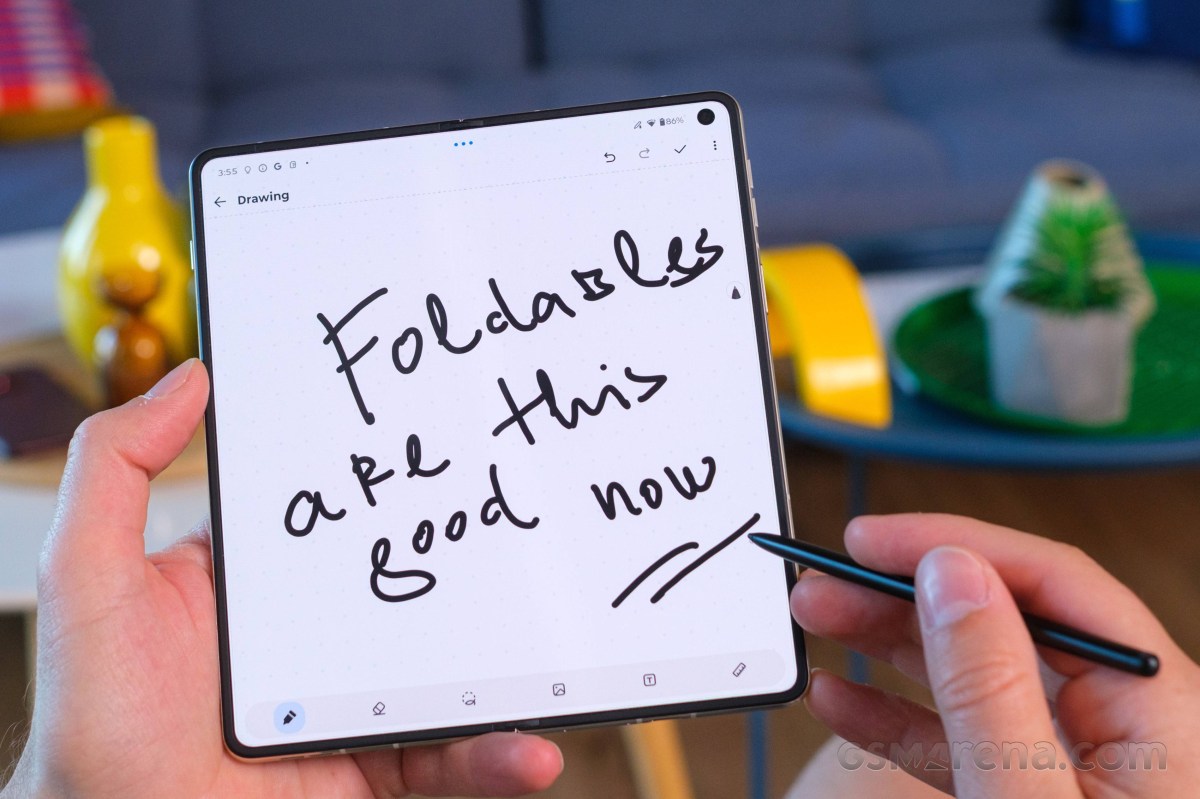
When you remove the stylus from the phone, you get a floating menu with customizable options – open a new note, take a screenshot to write on (annotate), zoom, sketch to image. You can add or remove apps and settings from this menu, which is handy.
This stylus supports Knock Knock gesture on a flat surface (different from the phone’s display). It takes a screenshot, but, unfortunately, it is not customizable.
You can use the button of the Pen inside the Camera app – single press on the button for photo and press and hold to capture video for the hold duration.
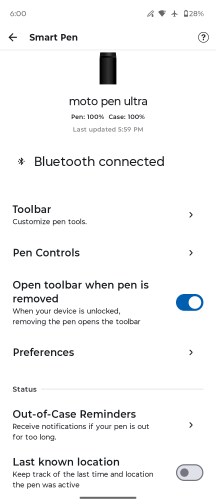
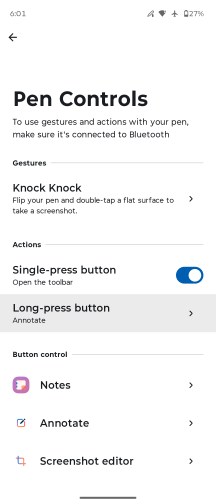
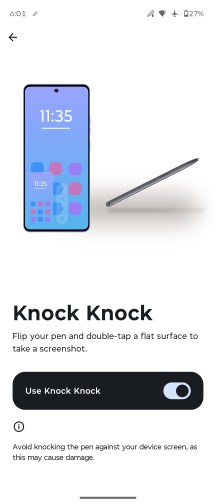
Stylus options
Taking notes is super easy, and the screen and the stylus are nicely responsive. Converting the handwritten text to machine text is almost flawless, too.
We also found the handwriting calculator quite handy. It supports quite advanced calculations, including integrals. To use this calculator, you need to be in Notes – Drawing mode. It does not do calculations when in the note-taking mode.
The Annotate option (crop and write from the screen) is neat, too, and it will probably be one of the most used stylus functions.
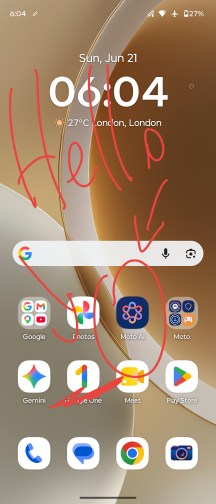
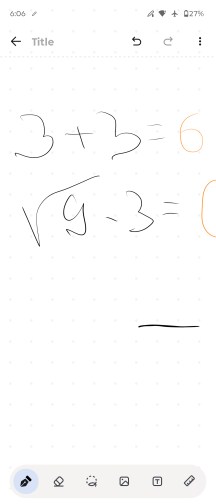
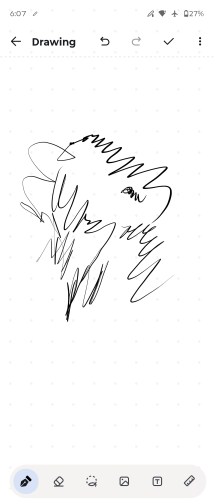
Anotate • Handwriting calculator • Note taking
The Sketch-to-image feature uses AI to create pictures from your odd drawings. And it works well too!
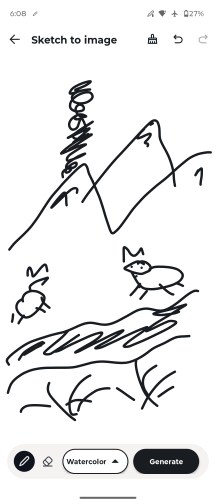
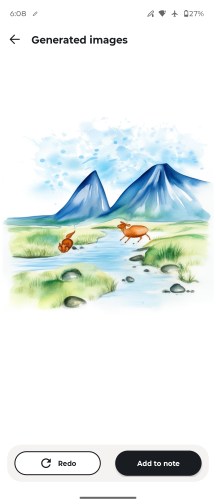
Sketch to image
Performance and benchmarks
The Motorola Razr Fold is powered by the Snapdragon 8 Gen 5 chip, one of the most powerful platforms on the market right now. It is coupled with 16GB of LPDDR5X RAM and either 512GB or 1TB of UFS 4.1 storage.
The Snapdragon 8 Gen 5 makes some downgrades from the 8 Elite Gen 5. For starters, while the CPU cores have the same 2+6 structure, the Prime cores are clocked 17%+ lower, and the performance cores are clocked 8% lower.
The Adreno 829 GPU is a slightly higher clocked version of the Adreno 825 found on the Snapdragon 8s Gen 4 (Poco F7 and Nothing Phone 3) and nowhere close to the Adreno 840 on the 8 Elite Gen 5 in terms of compute units or graphics memory.
All things considered, we think the Razr Fold is using a solid chipset for a large foldable, one that may give it better sustained performance than the Elite, which can cause cooling issues when combined with the slim folding bits.
Let’s run some benchmarks now.
Obviously, the Motorola Razr Fold is not the most powerful large foldable at the moment as it is not using the Elite chipset. But you can see it scores better than the Magic V6 in its Balanced mode (default) settings and it’s still pulling some great scores across the board.
The Motorola Razr Fold has a modern chip and enough RAM to handle games, heavy tasks and various multi-tasking scenarios. We never saw it stutter, no matter what, and games ran hassle-free on either screen.
The sustained performance is quite alright for this form factor. The Razr Fold kept 57% of its CPU and 72% of its GPU performance – as per the stress tests we ran on its large screen.
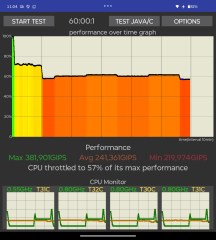
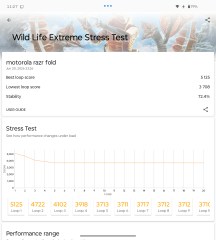
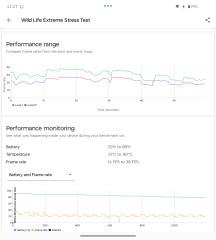
CPU test • GPU test
The stress test on the cover screen returned worse results, quite expectedly. When closed, the phone cannot cool down as well as when opened.
In this case, the Razr Fold performance dropped down to 52% for CPU and 53% for graphics.
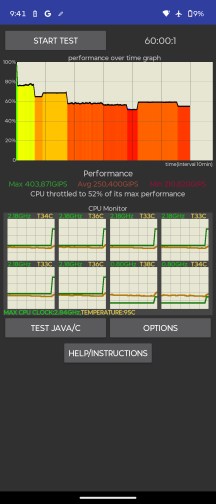
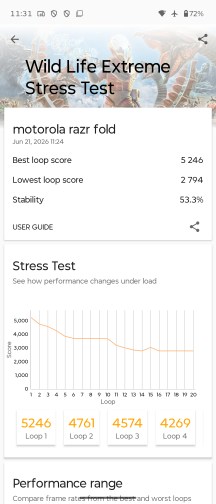
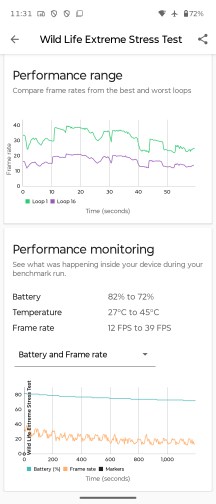
CPU test • GPU test